LAST UPDATED
06/07/2026
Introducing Referrer Contacts
Every case on Homey is tied to exactly one referring agency, yet Panel Management users have had no way to add a referrer from that agency as a contact on the case. That meant referrers could not be brought into case messaging, leaving a communication gap between your firm and the agency sending you work. Referrer Contacts closes that gap by adding a Referrer contact type to the Add Contact flow, letting you pick an eligible referrer, save them to the case, and include them in the conversation.
Contact Management
New Feature

Adding a Referrer to a Case
Adding a referrer works just like adding any other contact, with a purpose built selection flow that keeps things quick and accurate.
A New Referrer Role and Selection Flow
Open the Add Contact modal on any case and the Role dropdown now offers Referrer as a third option, alongside the existing Other Side Solicitor and Other choices, which stay exactly where they were. Because every case has one referring agency, Referrer is always available. Select it and the referring agency name appears as a read only label, followed by a dropdown of eligible referrers from that agency. Only referrers at Manager or Owner permission level appear, so you are always choosing someone with the standing to represent the agency. Referrers already added to this case are handled cleanly so the list stays uncluttered, and switching to a different role clears the referrer form and hides it, keeping the modal tidy.
Details That Fill In Automatically, Then Save
Pick a referrer from the dropdown and their first name, last name, email address and referring company name populate instantly beneath it. These values come straight from the referrer's own Homey profile and stay read only, so the contact record always matches their live details and never drifts out of sync. When everything looks right, click Add contact. The referrer is saved against the case, the modal closes, their card appears in the Contacts grid, and a "Contact added" confirmation appears at the bottom right. No invitation email goes out, because the referrer already has an active Homey account, so this is simply an internal link rather than an onboarding step.


Seeing and Managing Referrer Contacts
Once added, a referrer sits alongside all your other case contacts, with the same card, the same detail view, and the same controls you already know.
The Contact Card, Details and Removal
Referrer contacts appear in the Contacts grid using the same card style as every other contact type. Each card shows a Referrer role label, the referrer's full name, and their referring company name as a subtitle, along with quick actions to call or email them directly from the platform, plus a delete button and a view details link. Open view details and the familiar contacts popup shows the full record, including role, full name, referring company, and the stored email address, with buttons to call or email and a back button to return to the grid. Removing a referrer is just as straightforward: click delete, confirm in the dialog that appears, and the card disappears from the grid immediately, with a "Contact removed" confirmation. Importantly, the referrer is also taken out of any case messaging channels they were part of, so no orphaned access is left behind.
Closing the Communication Gap
The real value of a Referrer contact is what it unlocks: direct, in platform communication with the agency that sent you the case.
Referrers in Your Case Messaging Channels
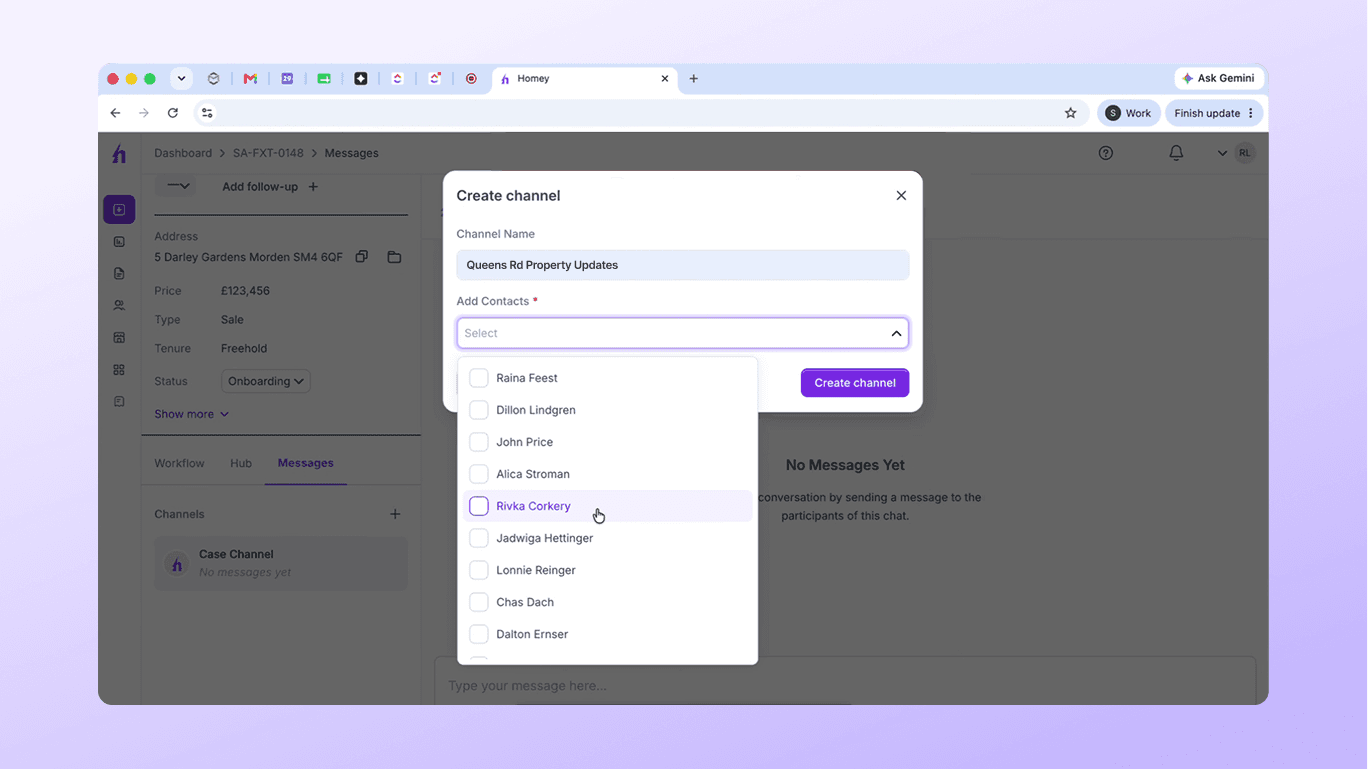
Once a referrer is a contact on the case, they become available to add to the case messaging channel through the same participant management flow you use for everyone else, with no separate process to learn. When you add them, the referrer receives the standard messaging channel invitation and can join the conversation using their existing Homey account, so you can coordinate with them directly on the case instead of relying on email chains outside the platform. Because the whole feature reuses existing components and the same permission rules that govern other contact types, it feels instantly familiar and behaves reliably from day one.

