LAST UPDATED
16/06/2026
Payment Setup for Completion Day
Efficiently coordinate completion day payments between solicitors and finance teams with our new centralised module.
Lead Dashboard
Payment Setup

Centralise your completion payments directly in Homey
Managing the final stages of a property transaction requires precision and clear communication. Historically, completion day payments have been handled through a mix of external emails and manual spreadsheets. This often led to difficulty in tracking progress and a lack of a clear audit trail.
The new Payment Setup module changes this by providing a dedicated space within your workflow to record, manage, and execute every payment. By moving these tasks into a structured system, you can reduce the risk of manual errors and ensure that both Fee Earners and Finance teams remain perfectly aligned.
A New Dedicated Task for Your Workflow
You can now find the Payment Setup tool located as a specific sub task within the Completion section of your case. This module allows you to build a comprehensive list of every payment required for a successful completion, grouped clearly by category.
Whether you are handling Stamp Duty, the main Purchase Price, or Third Party fees, every item is stored in one place. This centralised view gives you and your team a single source of truth for the financial state of the transaction.
High Value CHAPS Flagging
Risk management is integrated into the heart of the module. Any payment request for an amount of £250,000 or more is automatically flagged as a CHAPS payment. This high priority status is clearly visible on your screen, in the generated documents, and within the emails sent to your Finance team.

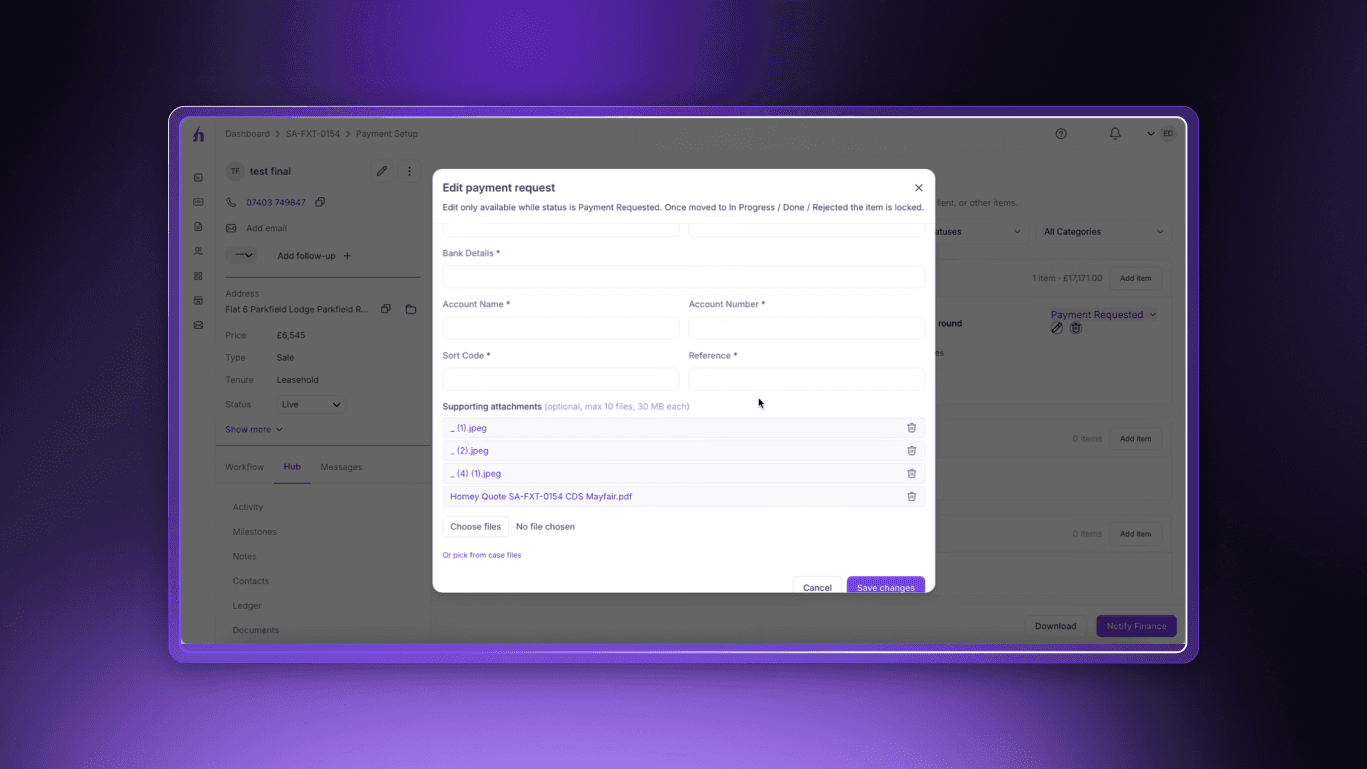
Precision and Accuracy in Every Request
Accuracy is paramount when dealing with large sums of money. The Payment Setup module includes several built in safeguards to ensure that the data you send to Finance is correct every time.
Automated Validation and Smart Suggestions
When adding a new payment item, the system now validates bank details in real time. It checks that sort codes and account numbers follow the correct format before you can save the request. To save even more time, the Payee Autocomplete feature remembers your previous contacts. As you type a name, the platform suggests the payee and automatically fills in their banking information.
Total Visibility with Status Tracking
The days of chasing Finance for payment updates are over. Every payment item follows a transparent lifecycle so you always know exactly where your money is.
Requested: Your initial request is recorded and ready for review. You can edit any details at this stage.
In Progress: Once Finance begins processing the payment, the item is locked to prevent any accidental changes.
Done: When the transfer is successful, the status turns green. You will receive an automated email notification the moment this happens.
Rejected: If a payment cannot be completed, it is clearly flagged with a specific reason. This allows you to address any issues and recreate the request immediately.
Streamlining the Finance Handover
The Notify Finance feature removes the need for manual email drafting. With one click, the system generates a professional, branded PDF document containing all the necessary case details and payment breakdowns.
This document is emailed directly to your Finance department, providing them with an execution ready list of transfers. Every action, from the moment you create a request to the final notification, is logged in the case activity feed. This creates an ironclad audit trail that ensures your firm remains compliant and organised.