DATE
20/03/2026
Email Import into Messaging
Eliminate inbox switching and improve case traceability by bringing inbound external emails directly into a single, secure Homey messaging timeline.
Lead Dashboard
Communication Portal
Feature Published Date:
March 2026
Feature Coverage:
Communication · Audit Logs
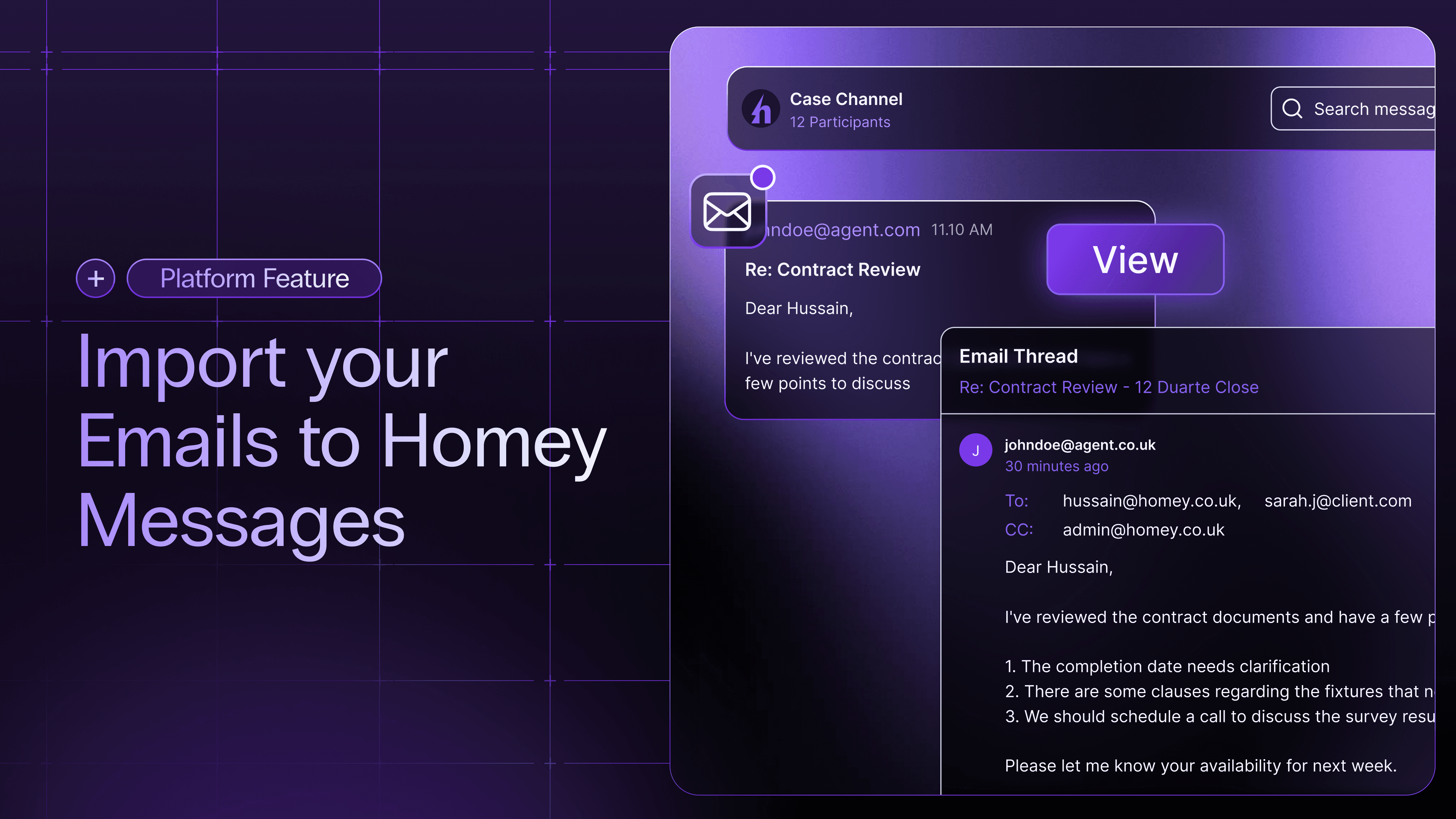
Bring your external emails directly into Homey!
Currently, communication between conveyancers, clients, and external parties is often split across external email systems and the Homey platform. This fragmentation makes it difficult to trace case histories and forces you to manually dig for past correspondence.
With Phase 1 of Email Import, Homey is bridging that gap. Our objective is to bring your inbound external emails directly into the Case Channel messaging feed, giving you a single, chronological, and highly secure communication hub.
Smart Auto-Routing & Ingestion
We are cutting down manual data entry. Homey now monitors your designated company shared mailbox and pulls inbound emails directly into the platform.
Dynamic Matching: The system automatically reads the email's Subject, Sender, Recipient, and Case ID to instantly drop the message into the correct Case Channel.
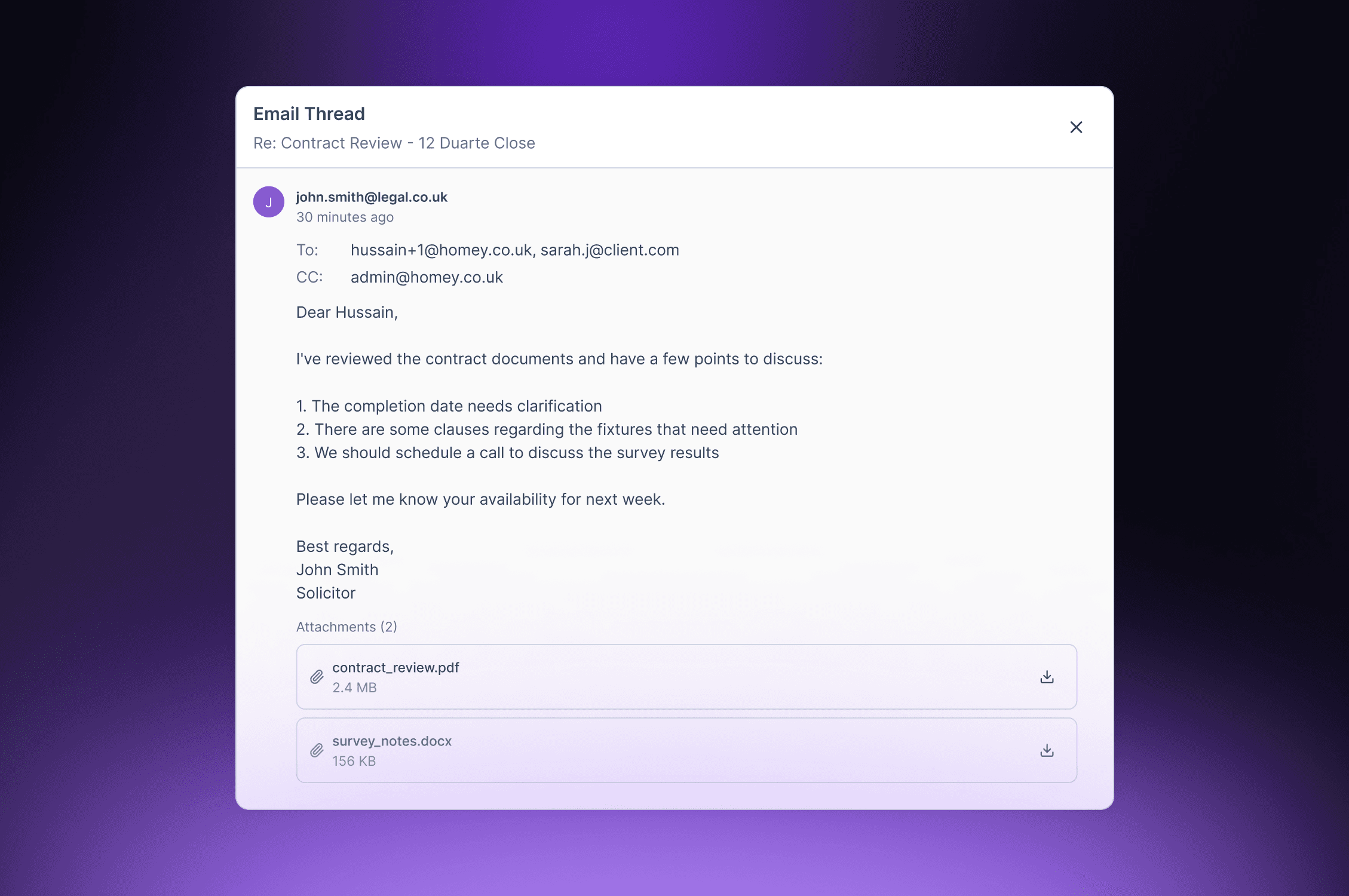
Visual Threading: To keep your timeline clean, related emails are grouped visually as threads. You will see the newest message by default, with older correspondence neatly collapsed behind a "show more" view.
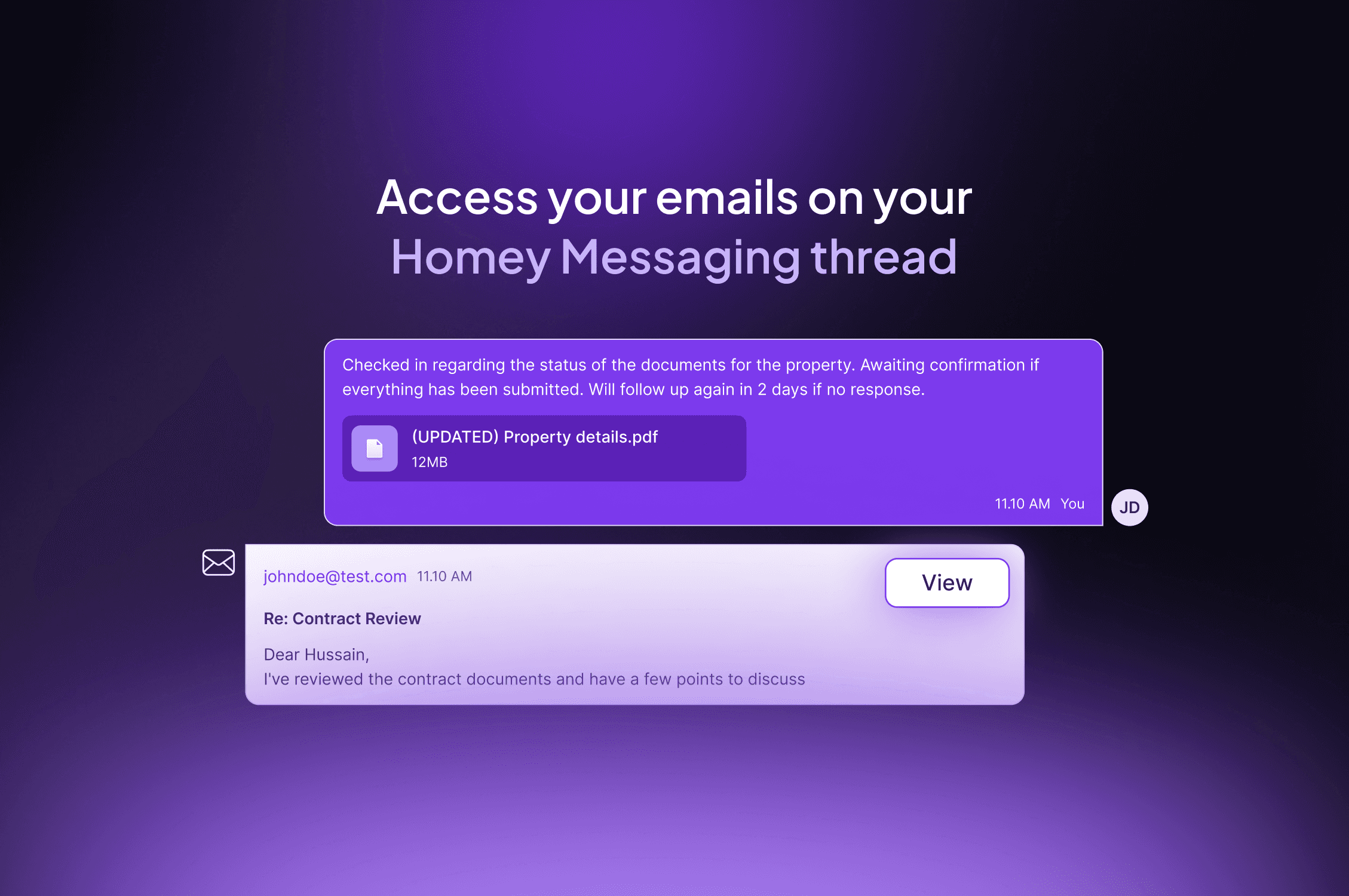
Read-Only Format: To prevent confusion between chat and email, imported emails appear in a read-only state. To reply, simply compose a new chat message right there in the timeline.
Granular Message-Level Visibility
Privacy and data security are paramount. We have engineered this feature so that visibility is strictly enforced on a per-message basis, rather than a per-thread basis.
Smart Defaults: When an email is imported, it is automatically visible only to the participants who were included in the To/CC lines.
Conveyancer Control: Only Conveyancers have the power to override and expand visibility. You can choose to reveal a specific message to all participants or specific users. (Note: Expanding visibility for one message does not retroactively expose older messages).
Professional View: If a professional user (like a Referrer or Assistant) does not have access to a specific message, it will appear blurred in their timeline with an information icon explaining the restriction.
Clean Client View: Clients will never see blurred messages, visibility badges, or internal threads. They only see a clean feed of the specific messages they are explicitly permitted to view.
The Unassigned Queue
Not every email has a perfect Subject line. When the system cannot automatically match an email to a case, it doesn't get lost, it gets queued.
Manual Allocation: Managers, Owners, and Conveyancers can access the Unassigned Queue to manually assign emails to the correct case using the case number.
Timeline Integrity: When you manually assign an email, it drops into the Case Channel based on its original timestamp, preserving chronological order. A UI banner will alert the team that a historical message was added.
Safety Net: Made a mistake? You have a 24-hour window to undo an assignment before it becomes permanently attached to the case timeline.
Search, Filtering, and Compliance
As your single source of truth grows, finding what you need remains fast and secure.
Keyword Search: Phase 1 includes robust keyword searching across your centralized messaging hub.
Compliance Guaranteed: All imported emails and chat messages are preserved for up to six years to ensure full audit compliance and historical traceability.